
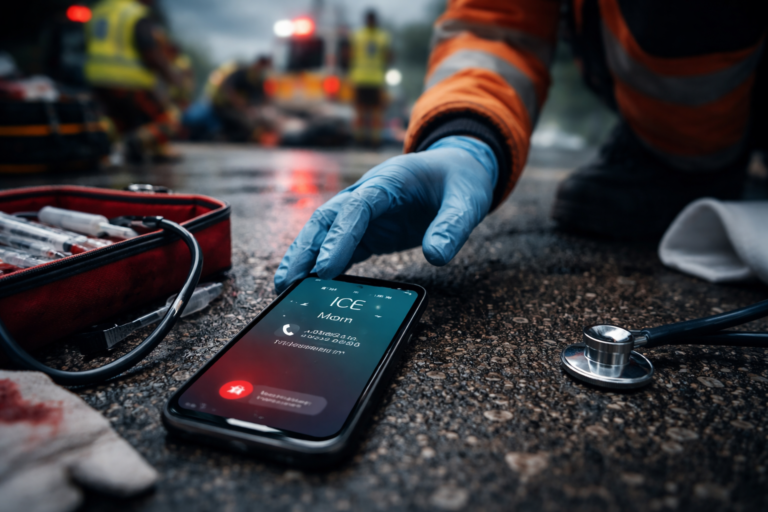
When seconds matter, clear information can save time — and lives. Placing a customized ICE (In Case of Emergency) contact on your phone’s lock screen gives paramedics and first responders immediate access to the people and details they need when you can’t speak for yourself.
What an ICE contact does for paramedics
Paramedics arrive on scene with one goal: stabilize and treat. They often rely on bystanders and any available information to make quick decisions. An ICE contact on the lock screen helps by:
- Pointing responders to someone who knows your medical history and preferences.
- Helping them confirm identity, allergies, medications, and chronic conditions.
- Accelerating family notification so relatives aren’t left waiting.
- Reducing delays caused by searching for contact details or medical records.
What to include in your ICE contact
Make the information concise and relevant. Consider these essentials:
- Name and relationship (e.g., “ICE: Maria Lopez — Wife”)
- Primary phone number (one or two numbers)
- Any major allergies (e.g., “Penicillin allergy”)
- Critical conditions or implants (e.g., “Diabetes; pacemaker”)
- Current medications that could affect treatment (short list)
- Preferred language, if not obvious
- Blood type, if known
Keep it short on the lock screen. For more detailed medical data, use built-in Medical ID/Emergency Info (see next section).
How to set it up (quick guide)
Most phones provide a secure way to share emergency info without unlocking the device. Use the built-in tools when possible.
- iPhone: Open the Health app → Medical ID → Edit → Enable “Show When Locked.” Add emergency contacts and medical details there.
- Android: Settings vary by manufacturer. Look for “Safety & emergency,” “Emergency information,” or “Lock screen” settings. Many Android phones allow emergency contacts and messages on the lock screen.
- Samsung: Settings → Lock screen → Contact information or Settings → Safety and emergency → Emergency contacts.
- If your phone lacks a built-in option, add a short ICE message to your lock screen wallpaper with name and phone number. Keep it minimal to protect privacy.
Always test: after setting up, lock your phone and check that emergency info is accessible without unlocking.
Privacy and safety considerations
You want help quickly but also want to protect your privacy. Balance these by:
- Using the phone’s Medical ID/Emergency Info features — they allow responders to access health details without unlocking your phone.
- Avoiding overly detailed personal notes on the lock screen (e.g., full medical history). Use concise alerts instead.
- Informing listed contacts so they know they may be called in an emergency.
- Updating the information after major health or contact changes.
Real-world benefits
Stories from first responders often highlight how an ICE contact shortened response time or prevented a dangerous drug interaction. For example:
- A paramedic finds a severe allergy listed on the lock screen and avoids a harmful medication.
- Emergency teams contact a spouse immediately to obtain medical history and consent for treatment.
- Language barriers are resolved because an ICE contact speaks the patient’s primary language.
Even when paramedics don’t use the contact, having one reduces uncertainty and helps coordinate care effectively.
Quick checklist to get started
- Add at least one ICE contact and phone number.
- Enter critical allergies, conditions, and medications in Medical ID/Emergency Info.
- Enable “show when locked” for Medical ID or Emergency Info.
- Test access from the locked screen.
- Tell your ICE contact they’re listed and update info yearly.
Final thought
A few minutes to set up an ICE contact can make a huge difference during a crisis. It gives paramedics the context they need, speeds up communication, and helps ensure you get the right care quickly. Set yours up today — it’s an easy, low-effort way to help first responders help you.